Create an Event
Set up a tournament under your organisation.
Events belong to an organisation. You need an organisation role that permits event creation before the creation action appears.
Create the event
- Open the organisation workspace.
- Select Create Event from the event switcher or organisation overview.
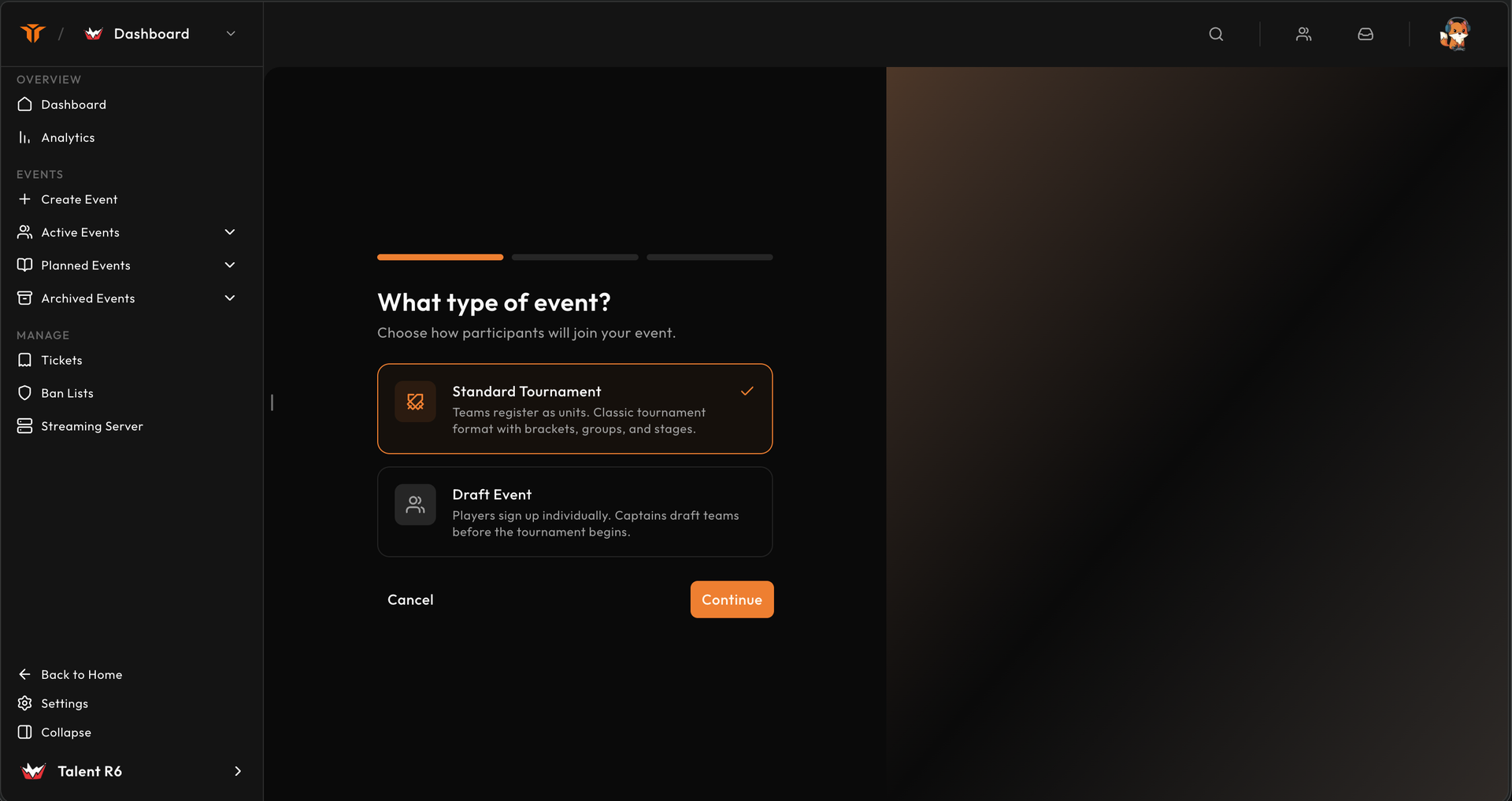
- Choose an event type.
- Choose the competition platform.
- Enter the event name and select its visibility.
- Select Create Event.
Strave checks the public slug generated from the name before enabling the final
action. Event names are presented publicly as
Organisation Name | Event Name, so enter only the event-specific part.
Choose the event type
| Type | Registration model | Best for |
|---|---|---|
| Standard tournament | Existing teams register as units. | Leagues, qualifiers, brackets, and scheduled team play. |
| Draft event | Players register individually and captains draft teams. | Mix teams, combines, and community drafts. |
The event type changes registration and team formation. It is a foundational choice, so confirm it before building the rest of the event.
Choose the platform
The platform controls who the event is intended for and keeps draft input methods within the same ecosystem. Available choices include PC, console, and crossplay where supported.
Choose visibility
| Visibility | Behaviour |
|---|---|
| Public | Discoverable and visible to anyone. |
| Unlisted | Available to people with the direct link. |
| Private | Invite-only and hidden from public discovery; plan access may be required. |
Visibility can be changed later in Settings → Details.
Configure the draft
New events start in a draft state. Before publishing, work through:
- Details — name, platform, visibility, and region.
- Registration — approval, team size, ban lists, and signup questions.
- Map pool — preset or custom competitive maps.
- Match format — best-of formats and veto steps.
- Rules — rulebooks, protests, and anti-cheat requirements.
- Team changes — name, logo, and lineup policies.
- Stages — formats, groups, seeding, check-in, and advancement.
- Branding — public content, banner, and sponsors.
- Notifications — Discord or HTTP webhook destinations.
The event dashboard shows a publication checklist and links directly to unfinished areas.
Publish carefully
Publishing opens the event as an active competition surface and locks some structural choices. In particular, community-cup team size and the map pool cannot be freely changed after the event leaves draft state.
Preview the public link, confirm registration rules, and test any broadcast assets before publishing.
Next, use Event settings and modes for the detailed configuration model and Event teams for registration operations.