Overview
Attach production overlays to your event and drive them live.
Strave overlays are event-scoped browser sources for OBS, vMix, and similar production tools. They use the live playday selected in Stream Manager, so one set of scene URLs can follow the current match throughout a broadcast.
Prepare the event
Before copying sources:
- Add the event banner, description, and sponsor assets.
- Open Stream config.
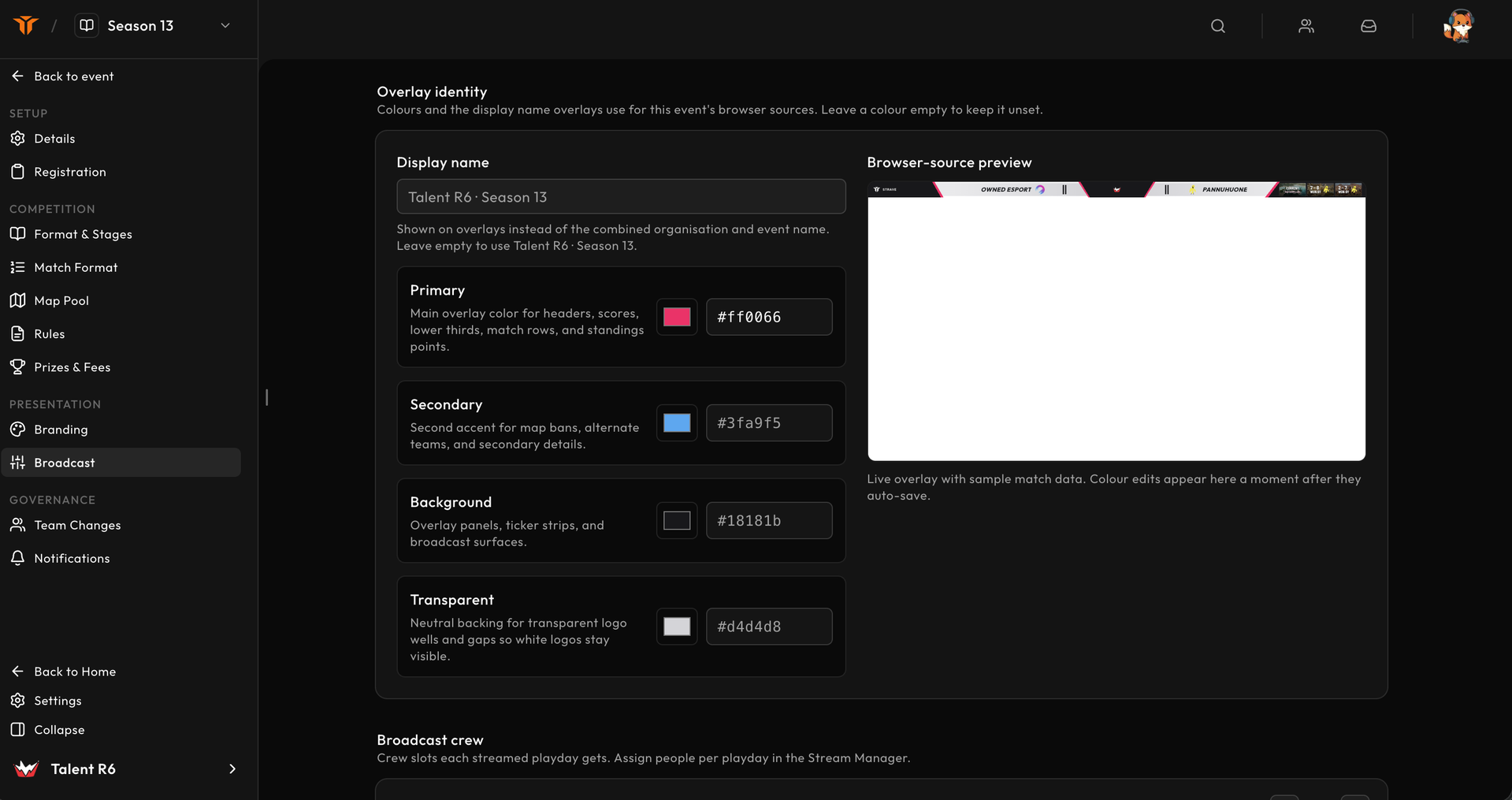
- Set the overlay display name and brand colours.
- Choose whether the info area shows the match timer, custom text, or nothing.
- Add and enable footer ticker lines.
- Define caster, observer, and producer slots for each playday.
Stream config auto-saves. Its embedded preview uses sample match data, which makes colour and legibility checks safe before a real playday exists.
Choose an overlay
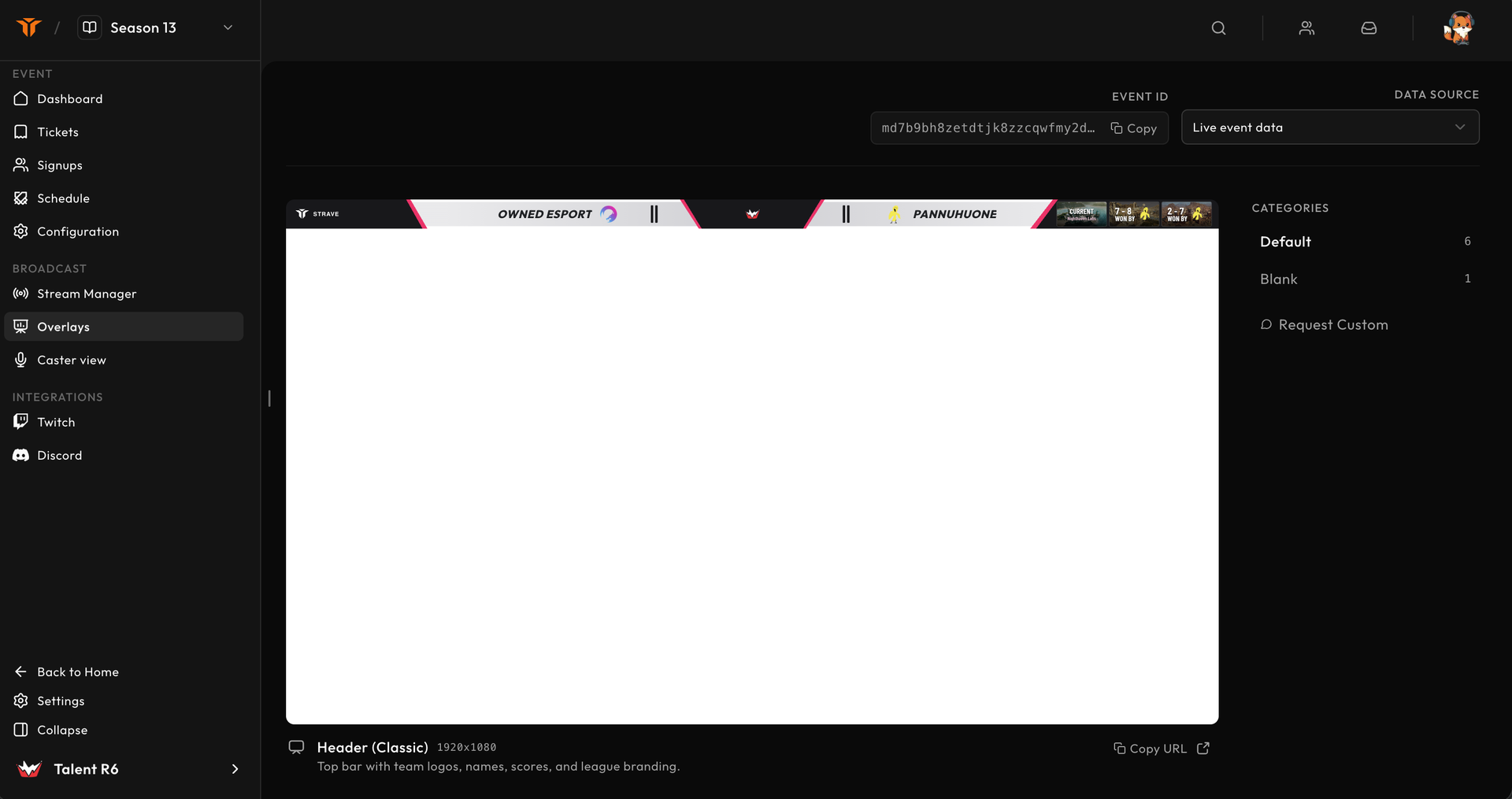
Open Overlays in the event workspace. The gallery currently includes:
| Source | Purpose |
|---|---|
| Header (Classic) | Team names, logos, series score, maps, and event identity. |
| Bottom Bar | Timer or custom info, sponsors, and ticker copy. |
| Bottom Bar (Dark) | A darker lower-third treatment. |
| Map Ban Phase | Live map picks, bans, decider, and side choices. |
| Matchday Schedule | The playday rundown with live and completed states. |
| Stage Standings | Standings for the stage tied to the active match. |
| Blank Match Header | Minimal unbranded base for custom production styling. |
All built-in sources use a 1920 × 1080 canvas.
Add a source to OBS
- Select Live event data in the gallery.
- Find the required overlay and select Copy URL.
- In OBS, add a Browser source.
- Paste the URL and set its size to 1920 × 1080.
- Leave custom CSS empty unless you intentionally override a documented class.
- Enable Shutdown source when not visible only if reconnecting when a scene opens is acceptable for your production.
The source follows the on-air playday and selected match. Keep the event id and query parameters intact.
Test without touching the live show
Switch the gallery data source to Test playday. Test URLs include a fixture playday id and render production-like teams, maps, scores, and rundown states without changing event data.
Use test mode to verify:
- source dimensions and transparency;
- safe areas and cropping;
- sponsor contrast;
- ticker length;
- map-veto and score changes;
- scene transitions.
Copy the Live event data URL again before the real broadcast if you created a separate test source.
Going live
Overlays do not select matches themselves. In Stream Manager, prepare the rundown, stage the first match, assign the crew, and select Put on air. Advancing the rundown updates every connected source.
If an overlay looks stale, confirm that the correct playday is on air and that a match is selected before refreshing the browser source.