Event Teams
How event teams work, including roster change requests.
An event team is the tournament-specific copy created when a source team registers. It protects the integrity of an event while letting the source team continue operating normally.
Source team and event team
| Source team | Event team |
|---|---|
| Owned by the team's members. | Governed by the event and its organisers. |
| Used across Strave. | Used only inside one event. |
| Roster and profile can keep changing. | Name, logo, and lineup follow event policies. |
| Provides the initial registration data. | Holds signup answers, groups, check-ins, and competition status. |
Source profile and lineup updates propagate into the event copy according to the organiser's change policy. Open changes apply automatically, approval-mode changes create review requests automatically, and locked changes leave the event copy unchanged.
Registration statuses
Event teams move through these operational states:
| Status | Meaning |
|---|---|
| Registered | Signup received and waiting for any required review. |
| Approved | Accepted by the organiser. |
| Checked in | Ready for the relevant first-stage group. |
| Eliminated | Finished competing through normal progression. |
| Disqualified | Removed from competition by an organiser decision. |
Check-in can also be recorded per group, which matters when the first stage has multiple qualifiers.
Organiser workflow
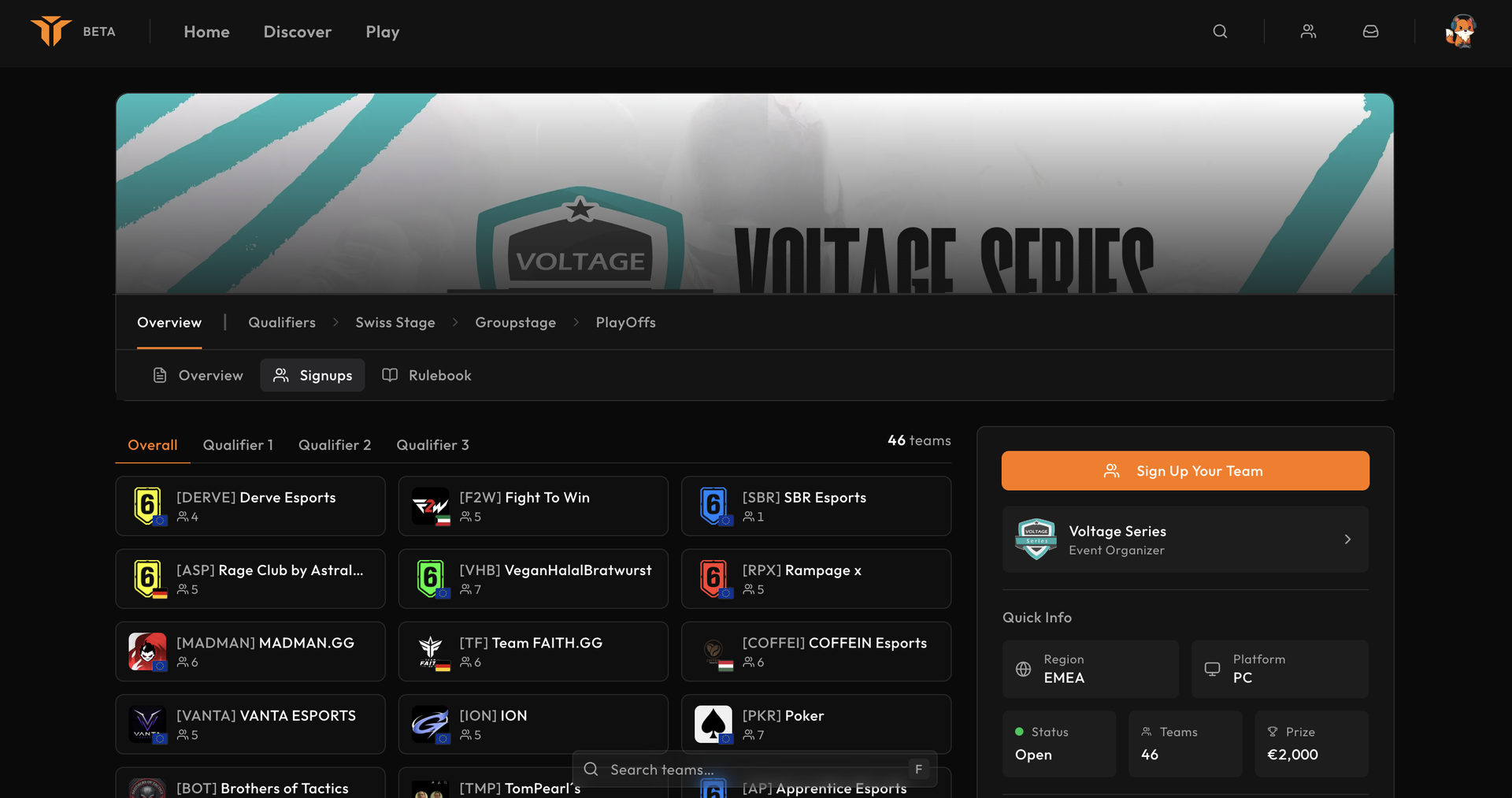
Open Signups in the event workspace to:
- search by team name or tag;
- switch between table and card views;
- filter by status;
- invite a team directly;
- approve, check in, disqualify, or remove a team;
- inspect signup answers and the registered lineup;
- edit the event-team profile or sync it from the source team.
Selecting a team opens its detail view with separate sections for details, players, answers, and change requests.
Change policies
Under Settings → Team changes, organisers set an independent policy for the team name, logo, and lineup:
| Policy | Result |
|---|---|
| Open | Eligible team managers can apply the change directly. |
| Request | The change is held for organiser approval. |
| Locked | The change is blocked. |
Optional change windows limit when a policy can be used. Outside every matching window, the change is blocked even when the policy would otherwise allow it.
Review a change request
Requests can cover a name or logo update, adding or removing a member, replacing a player, or changing a lineup role.
- Open Signups and select the event team.
- Open Changes.
- Review the requested value, affected member, requester, and timestamp.
- Select Approve or Decline.
Resolved requests remain visible as an audit trail.
Team-manager responsibilities
Team managers should verify the event copy after registration, respond before change windows close, and check in every required group. Open source-team changes appear automatically. Approval-mode changes remain pending until an organiser accepts them.
See Sign up for an event for the participant flow and How matches work for what happens after seeding.